What does Practice Overview show?
The dashboard is an exception-led view of current work. It brings together active clients and operational counts such as source records needing review, open bank items, open VAT periods and other work that requires staff attention.
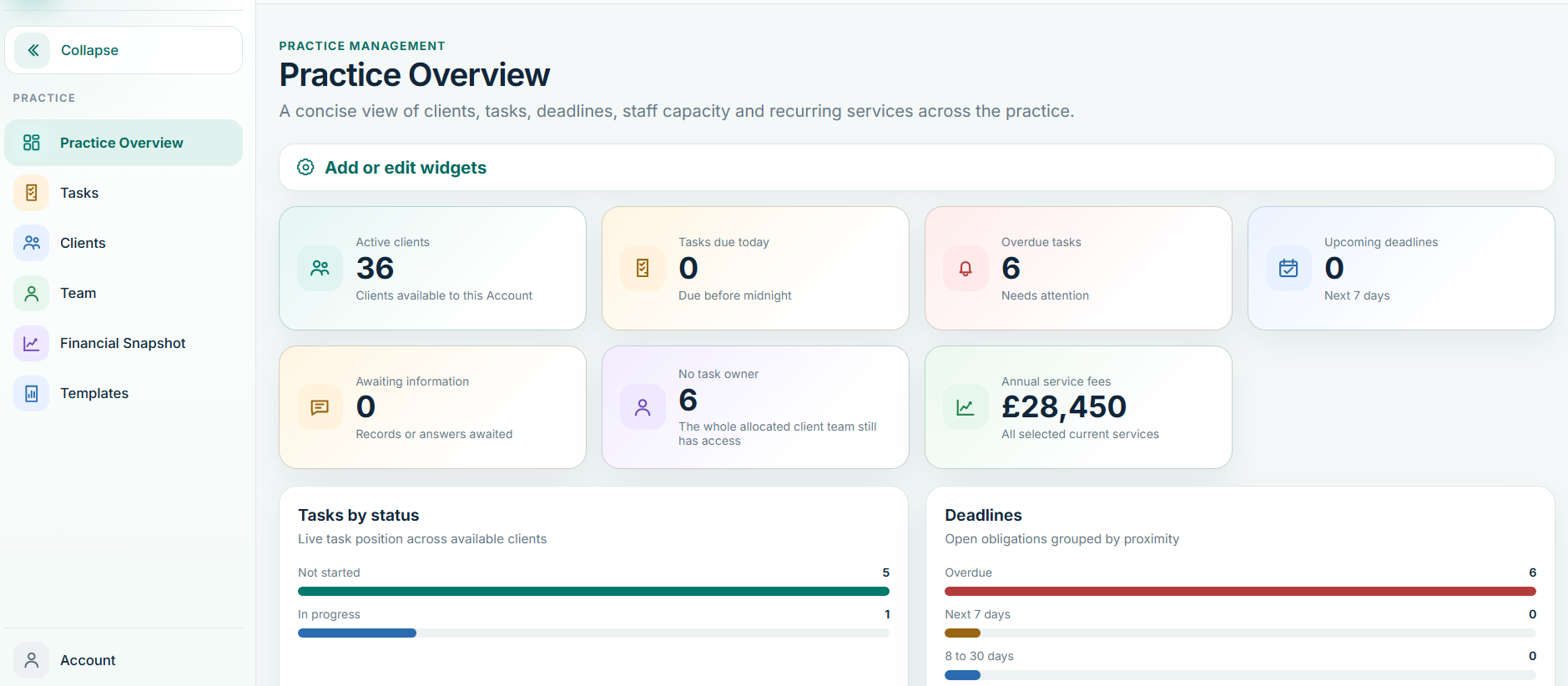
Open the right client and period
- Use the client directory or selected-client control to choose the client.
- Open the client hub or the relevant accounting module.
- Confirm the accounting period before posting, reviewing VAT or making year-end changes.
- Return to Practice Overview when the client-level exception is cleared.
Do not use a practice-level count as evidence that a client is complete. Completion is proved inside the client workflow, for example by a bank reconciliation, VAT control or finalisation check.
Work from the workflow overview
Workflow rows are designed to take you directly to the area that needs attention. Typical routes include source records, bank coding, VAT and working papers. Prioritise blocked or review-required items before work that is already complete.
For bookkeeping clients, confirm whether the client is Document-Led or Bank-Led before following accounting instructions.
If a practice count looks wrong
- Refresh the client module that owns the underlying item.
- Check that you are looking at the correct client and period.
- Confirm whether the item is genuinely open, or only waiting for a review/status refresh.
- If the count still disagrees with the underlying records, capture the dashboard count and the client-level detail when raising support.